Commercial WiFi security cameras start at a few thousand rupees. They require cloud subscriptions, phone apps from companies you may not trust, and servers halfway around the world storing your footage. But what if you could build your own for under six hundred rupees, keep all data local, and customize it to do exactly what you need?
That is precisely what the ESP32-CAM makes possible. In this guide, we will build a fully working WiFi security camera from scratch — complete with live video streaming, photo capture to microSD, time-lapse photography, motion detection, and Telegram alerts when something moves in front of your camera. No cloud required.
What Is the ESP32-CAM?
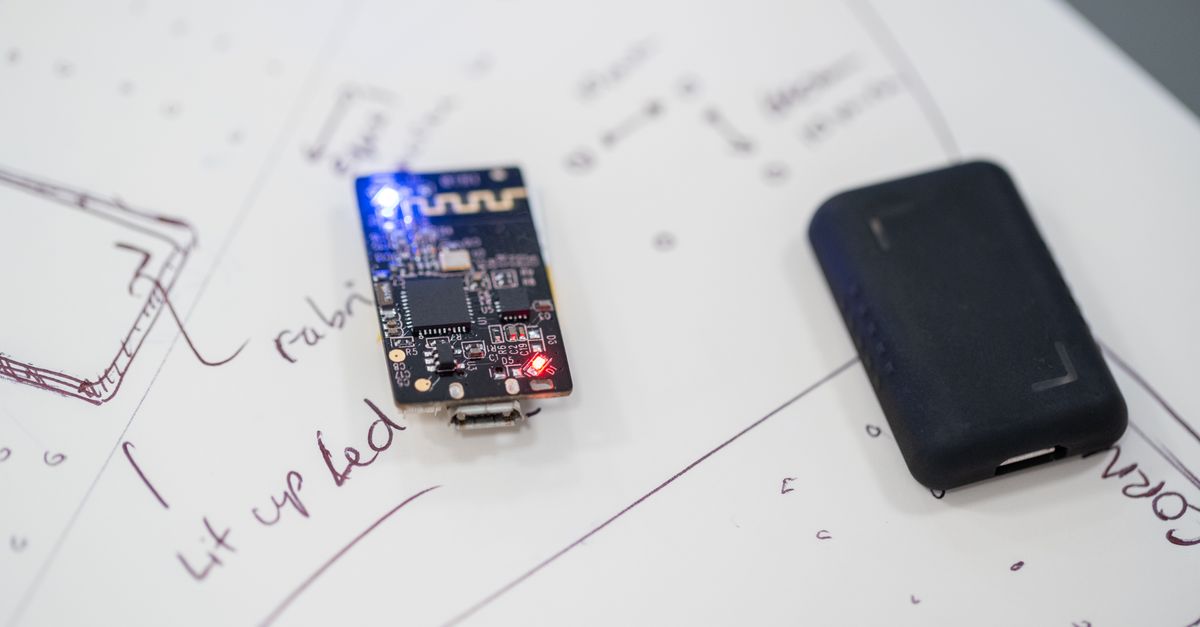
The ESP32-CAM is a compact development board that packs an ESP32-S microcontroller, an OV2640 2-megapixel camera sensor, a microSD card slot, a bright white flash LED, and an onboard ceramic WiFi antenna — all on a board roughly the size of a postage stamp.
Here is what makes it remarkable:
| Feature | Specification |
|---|---|
| MCU | ESP32-S (dual-core Xtensa LX6, 240 MHz) |
| Camera | OV2640, 2MP, supports JPEG output |
| RAM | 520 KB SRAM + 4 MB PSRAM |
| Flash | 4 MB |
| WiFi | 802.11 b/g/n, 2.4 GHz |
| Bluetooth | BT 4.2 + BLE |
| Storage | microSD card slot (up to 4 GB recommended) |
| Flash LED | High-brightness white LED on GPIO 4 |
| Operating Voltage | 5V input (3.3V logic internally) |
| Price | Approximately 500-600 INR |
At this price point, you can deploy multiple cameras around your home or workshop without worrying about the cost.
What You Can Build With It
- Live video streaming over your local WiFi network (MJPEG)
- Motion detection by comparing consecutive frames
- Time-lapse photography with images saved to microSD
- Face detection using the ESP32's built-in neural network accelerator
- Telegram photo alerts when activity is detected
- Doorbell camera triggered by a PIR sensor or button
- Wildlife camera trap powered by a solar-charged battery
Hardware You Will Need
Before writing any code, gather these components:
| Component | Purpose | Approximate Price |
|---|---|---|
| ESP32-CAM (AI-Thinker) | The camera module itself | 450-550 INR |
| FTDI USB-to-Serial adapter (or CP2102) | Programming the board (first flash) | 80-120 INR |
| 5V 2A power supply | Stable power for the ESP32-CAM | 50-80 INR |
| microSD card (Class 10, 4-16 GB) | Storing captured photos | Already have one |
| Jumper wires (female-to-female) | Connecting FTDI to ESP32-CAM | 20-30 INR |
Total cost: Under 600 INR if you already have a microSD card and jumper wires.
Important: The ESP32-CAM board does not have a built-in USB port. You need an external FTDI or CP2102 USB-to-serial adapter to program it for the first time. After the initial flash, you can use OTA (over-the-air) updates if you include OTA code in your sketch.
ESP32-CAM Pin Layout and Board Overview
The AI-Thinker ESP32-CAM has pins along both long edges. Here is the layout you need to know:
                    ┌─────────────────┐
                    │   [OV2640 CAM]  │
                    │                 │
              5V ───┤                 ├─── 3V3
             GND ───┤                 ├─── GPIO 16
         GPIO 12 ───┤                 ├─── GPIO 0  ← BOOT/FLASH
         GPIO 13 ───┤                 ├─── GND
         GPIO 15 ───┤                 ├─── VCC (3.3V out)
         GPIO 14 ───┤                 ├─── U0R (RX)
          GPIO 2 ───┤                 ├─── U0T (TX)
          GPIO 4 ───┤  [FLASH LED]   ├─── GND
                    └─────────────────┘
                      [microSD slot]
Key pins to remember:
- GPIO 0: Pull LOW (connect to GND) to enter flash/programming mode. Leave floating for normal boot.
- U0T / U0R: Serial TX and RX for programming via FTDI.
- GPIO 4: Connected to the onboard flash LED. Also shared with the microSD card's HS2_DATA1 line, which can cause the LED to flicker during SD writes.
- GPIO 2: Connected to the microSD card. Do not use as a general-purpose pin if you plan to use the SD card.
First-Time Programming: Connecting the FTDI Adapter
Since the ESP32-CAM lacks a USB port, you need to wire up an FTDI (or CP2102) adapter manually. This is the wiring:
| FTDI Adapter | ESP32-CAM |
|---|---|
| GND | GND |
| VCC (5V) | 5V |
| TX | U0R (RX) |
| RX | U0T (TX) |
Notice the TX/RX crossover — the FTDI's TX connects to the ESP32-CAM's RX, and vice versa. This is the most common mistake beginners make.
To enter flash mode, connect GPIO 0 to GND with a jumper wire before powering on the board. After a successful upload, disconnect GPIO 0 from GND and press the small RST button (or power cycle) to boot normally.
Setting Up Arduino IDE
- Open Arduino IDE and go to File > Preferences.
- In "Additional Board Manager URLs", add:
https://raw.githubusercontent.com/espressif/arduino-esp32/gh-pages/package_esp32_index.json - Go to Tools > Board > Boards Manager, search for esp32, and install the package by Espressif Systems.
- Select the board: Tools > Board > ESP32 Arduino > AI Thinker ESP32-CAM.
- Set upload speed to 115200.
- Select your FTDI's COM port under Tools > Port.
Project 1: Live MJPEG Video Streaming
The fastest way to get a live camera feed is to use the built-in CameraWebServer example. Go to File > Examples > ESP32 > Camera > CameraWebServer.
Before uploading, you need to make two changes:
- Select the correct camera model. Uncomment
#define CAMERA_MODEL_AI_THINKERand comment out all other models. - Enter your WiFi credentials.
Here is a streamlined version of the core streaming code:
#include "esp_camera.h"
#include <WiFi.h>
#include "esp_http_server.h"

// === WiFi credentials ===
const char* ssid = "YOUR_WIFI_SSID";
const char* password = "YOUR_WIFI_PASSWORD";

// === AI-Thinker ESP32-CAM pin definitions ===
#define PWDN_GPIO_NUM     32
#define RESET_GPIO_NUM    -1
#define XCLK_GPIO_NUM      0
#define SIOD_GPIO_NUM     26
#define SIOC_GPIO_NUM     27
#define Y9_GPIO_NUM       35
#define Y8_GPIO_NUM       34
#define Y7_GPIO_NUM       39
#define Y6_GPIO_NUM       36
#define Y5_GPIO_NUM       21
#define Y4_GPIO_NUM       19
#define Y3_GPIO_NUM       18
#define Y2_GPIO_NUM        5
#define VSYNC_GPIO_NUM    25
#define HREF_GPIO_NUM     23
#define PCLK_GPIO_NUM     22

httpd_handle_t stream_httpd = NULL;

static esp_err_t stream_handler(httpd_req_t *req) {
    camera_fb_t *fb = NULL;
    esp_err_t res = ESP_OK;
    char part_buf[64];

    res = httpd_resp_set_type(req, "multipart/x-mixed-replace; boundary=frame");
    if (res != ESP_OK) return res;

    while (true) {
        fb = esp_camera_fb_get();
        if (!fb) {
            Serial.println("Camera capture failed");
            res = ESP_FAIL;
            break;
        }

        size_t hlen = snprintf(part_buf, 64,
            "\r\n--frame\r\nContent-Type: image/jpeg\r\nContent-Length: %u\r\n\r\n",
            fb->len);

        res = httpd_resp_send_chunk(req, part_buf, hlen);
        if (res == ESP_OK)
            res = httpd_resp_send_chunk(req, (const char *)fb->buf, fb->len);

        esp_camera_fb_return(fb);
        if (res != ESP_OK) break;
    }
    return res;
}

void startStreamServer() {
    httpd_config_t config = HTTPD_DEFAULT_CONFIG();
    config.server_port = 81;

    httpd_uri_t stream_uri = {
        .uri       = "/stream",
        .method    = HTTP_GET,
        .handler   = stream_handler,
        .user_ctx  = NULL
    };

    if (httpd_start(&stream_httpd, &config) == ESP_OK) {
        httpd_register_uri_handler(stream_httpd, &stream_uri);
    }
}

void setup() {
    Serial.begin(115200);

    camera_config_t config;
    config.ledc_channel = LEDC_CHANNEL_0;
    config.ledc_timer   = LEDC_TIMER_0;
    config.pin_d0       = Y2_GPIO_NUM;
    config.pin_d1       = Y3_GPIO_NUM;
    config.pin_d2       = Y4_GPIO_NUM;
    config.pin_d3       = Y5_GPIO_NUM;
    config.pin_d4       = Y6_GPIO_NUM;
    config.pin_d5       = Y7_GPIO_NUM;
    config.pin_d6       = Y8_GPIO_NUM;
    config.pin_d7       = Y9_GPIO_NUM;
    config.pin_xclk     = XCLK_GPIO_NUM;
    config.pin_pclk     = PCLK_GPIO_NUM;
    config.pin_vsync    = VSYNC_GPIO_NUM;
    config.pin_href     = HREF_GPIO_NUM;
    config.pin_sscb_sda = SIOD_GPIO_NUM;
    config.pin_sscb_scl = SIOC_GPIO_NUM;
    config.pin_pwdn     = PWDN_GPIO_NUM;
    config.pin_reset    = RESET_GPIO_NUM;
    config.xclk_freq_hz = 20000000;
    config.pixel_format = PIXFORMAT_JPEG;

    // Use PSRAM for higher resolution
    if (psramFound()) {
        config.frame_size   = FRAMESIZE_VGA;  // 640x480
        config.jpeg_quality = 12;             // 0-63, lower = better
        config.fb_count     = 2;
    } else {
        config.frame_size   = FRAMESIZE_QVGA; // 320x240
        config.jpeg_quality = 15;
        config.fb_count     = 1;
    }

    esp_err_t err = esp_camera_init(&config);
    if (err != ESP_OK) {
        Serial.printf("Camera init failed: 0x%x\n", err);
        return;
    }

    WiFi.begin(ssid, password);
    while (WiFi.status() != WL_CONNECTED) {
        delay(500);
        Serial.print(".");
    }
    Serial.println("\nWiFi connected");
    Serial.print("Stream URL: http://");
    Serial.print(WiFi.localIP());
    Serial.println(":81/stream");

    startStreamServer();
}

void loop() {
    delay(10000);
}
Accessing the Stream
After uploading (remember to disconnect GPIO 0 from GND first and reset the board), open the Serial Monitor at 115200 baud. You will see the board's IP address printed, something like:
Stream URL: http://192.168.1.42:81/stream
Open this URL in any browser on a device connected to the same WiFi network. You will see a live MJPEG video stream from your ESP32-CAM. This also works on your phone's browser.
Project 2: Capturing Photos to microSD Card
Insert a FAT32-formatted microSD card (4 GB or 8 GB, Class 10). The following code captures a photo and saves it to the card:
#include "esp_camera.h"
#include "FS.h"
#include "SD_MMC.h"

// Camera pin definitions same as above — omitted for brevity

int photoCount = 0;

void captureAndSave() {
    camera_fb_t *fb = esp_camera_fb_get();
    if (!fb) {
        Serial.println("Capture failed");
        return;
    }

    String path = "/photo_" + String(photoCount++) + ".jpg";
    File file = SD_MMC.open(path.c_str(), FILE_WRITE);
    if (file) {
        file.write(fb->buf, fb->len);
        file.close();
        Serial.println("Saved: " + path + " (" + String(fb->len) + " bytes)");
    } else {
        Serial.println("Failed to open file");
    }

    esp_camera_fb_return(fb);
}

void setup() {
    Serial.begin(115200);

    // Initialize camera (same config as above)
    // ...

    // Initialize SD card
    if (!SD_MMC.begin("/sdcard", true)) {  // true = 1-bit mode
        Serial.println("SD card mount failed");
        return;
    }
    Serial.println("SD card mounted");

    captureAndSave();  // Take one photo on startup
}

void loop() {
    // Take more photos as needed
}
Note the true parameter in SD_MMC.begin() — this enables 1-bit SD mode, which frees up GPIO 4 (the flash LED pin) from being used as a data line. Without this, the flash LED will interfere with SD card operations.
Project 3: Time-Lapse Photography
For a time-lapse, capture a photo at regular intervals. Add this to your loop():
// Capture one photo every 5 minutes
const unsigned long INTERVAL_MS = 5 * 60 * 1000;
unsigned long lastCapture = 0;

void loop() {
    unsigned long now = millis();
    if (now - lastCapture >= INTERVAL_MS) {
        lastCapture = now;
        captureAndSave();
    }
    delay(100);
}
At VGA resolution with JPEG quality 12, each photo is roughly 20-40 KB. A 4 GB microSD card can hold over 100,000 photos — enough for months of time-lapse recording at 5-minute intervals.
For outdoor time-lapse, consider using deep sleep between captures to save power:
void setup() {
    // Initialize camera and SD card
    captureAndSave();

    // Sleep for 5 minutes, then wake and re-run setup()
    esp_sleep_enable_timer_wakeup(5 * 60 * 1000000ULL);  // microseconds
    esp_deep_sleep_start();
}

void loop() {
    // Never reached — deep sleep resets to setup()
}
Project 4: Motion Detection
The ESP32-CAM can detect motion by comparing consecutive frames. The technique is straightforward: capture two frames, compute the average pixel difference, and trigger an alert if it exceeds a threshold.
#include "esp_camera.h"

#define MOTION_THRESHOLD 15    // Average pixel change to count as motion
#define BLOCK_SIZE 8           // Downsample by comparing 8x8 blocks

bool detectMotion(camera_fb_t *prev, camera_fb_t *curr) {
    if (!prev || !curr) return false;
    if (prev->len != curr->len) return false;

    int totalDiff = 0;
    int pixelCount = 0;

    // Compare raw JPEG buffers is unreliable.
    // For proper detection, use PIXFORMAT_GRAYSCALE:
    for (size_t i = 0; i < prev->len && i < curr->len; i += BLOCK_SIZE) {
        int diff = abs((int)prev->buf[i] - (int)curr->buf[i]);
        totalDiff += diff;
        pixelCount++;
    }

    float avgDiff = (float)totalDiff / pixelCount;
    Serial.printf("Motion score: %.2f\n", avgDiff);
    return avgDiff > MOTION_THRESHOLD;
}
For more reliable motion detection, switch the camera to grayscale mode (PIXFORMAT_GRAYSCALE) at a low resolution like QVGA (320x240). This gives you raw pixel data you can compare directly, rather than trying to compare JPEG-compressed buffers. When motion is detected, switch back to JPEG mode to capture a high-resolution photo.
Project 5: Telegram Alerts on Motion Detection
This is where things get exciting. When the camera detects motion, it can send a photo directly to your phone via a Telegram bot.
Setting Up the Telegram Bot
- Open Telegram and search for @BotFather.
- Send
/newbotand follow the prompts to create a bot. Save the API token. - Send a message to your new bot, then visit
https://api.telegram.org/bot<YOUR_TOKEN>/getUpdatesto find your chat ID.
Sending Photos to Telegram
#include <WiFiClientSecure.h>

const char* telegramToken = "YOUR_BOT_TOKEN";
const char* chatId = "YOUR_CHAT_ID";

void sendPhotoToTelegram(camera_fb_t *fb) {
    WiFiClientSecure client;
    client.setInsecure();  // Skip certificate verification

    if (!client.connect("api.telegram.org", 443)) {
        Serial.println("Telegram connection failed");
        return;
    }

    String boundary = "----ESP32CAMBoundary";
    String head = "--" + boundary + "\r\n"
                  "Content-Disposition: form-data; name=\"chat_id\"\r\n\r\n"
                  + String(chatId) + "\r\n"
                  "--" + boundary + "\r\n"
                  "Content-Disposition: form-data; name=\"photo\"; "
                  "filename=\"motion.jpg\"\r\n"
                  "Content-Type: image/jpeg\r\n\r\n";
    String tail = "\r\n--" + boundary + "--\r\n";

    size_t totalLen = head.length() + fb->len + tail.length();

    client.println("POST /bot" + String(telegramToken)
                   + "/sendPhoto HTTP/1.1");
    client.println("Host: api.telegram.org");
    client.println("Content-Type: multipart/form-data; boundary=" + boundary);
    client.println("Content-Length: " + String(totalLen));
    client.println();
    client.print(head);
    client.write(fb->buf, fb->len);
    client.print(tail);

    // Read response
    long timeout = millis() + 10000;
    while (client.connected() && millis() < timeout) {
        if (client.available()) {
            String line = client.readStringUntil('\n');
            Serial.println(line);
        }
    }
    client.stop();
    Serial.println("Photo sent to Telegram");
}
Integrate this with the motion detection loop:
camera_fb_t *prevFrame = NULL;

void loop() {
    camera_fb_t *currFrame = esp_camera_fb_get();
    if (currFrame && prevFrame) {
        if (detectMotion(prevFrame, currFrame)) {
            Serial.println("Motion detected! Sending alert...");
            sendPhotoToTelegram(currFrame);
            delay(10000);  // Cooldown: avoid spamming alerts
        }
    }
    if (prevFrame) esp_camera_fb_return(prevFrame);
    prevFrame = currFrame;
    delay(200);
}
Now every time the camera detects motion, you will receive a photo on your phone within seconds.
Camera Settings: Tuning for Your Use Case
After initializing the camera, you can adjust the sensor settings:
sensor_t *s = esp_camera_sensor_get();
s->set_brightness(s, 1);      // -2 to 2
s->set_contrast(s, 1);        // -2 to 2
s->set_saturation(s, 0);      // -2 to 2
s->set_whitebal(s, 1);        // 0 = disable, 1 = enable
s->set_exposure_ctrl(s, 1);   // 0 = disable, 1 = enable
s->set_aec2(s, 1);            // Auto exposure (DSP)
s->set_gain_ctrl(s, 1);       // Auto gain
s->set_agc_gain(s, 0);        // 0-30
s->set_gainceiling(s, (gainceiling_t)6);  // 0-6
s->set_vflip(s, 0);           // Vertical flip
s->set_hmirror(s, 0);         // Horizontal mirror
Resolution vs. performance tradeoff:
| Resolution | Dimensions | Typical FPS | JPEG Size | Best For |
|---|---|---|---|---|
| QQVGA | 160x120 | 25+ | 3-5 KB | Motion detection processing |
| QVGA | 320x240 | 20-25 | 8-15 KB | Low-bandwidth streaming |
| VGA | 640x480 | 12-15 | 20-40 KB | General purpose (recommended) |
| SVGA | 800x600 | 8-12 | 30-60 KB | Better detail |
| XGA | 1024x768 | 5-8 | 50-100 KB | Photo capture |
| UXGA | 1600x1200 | 2-4 | 100-200 KB | High-res snapshots only |
For a security camera, VGA at quality 10-12 offers the best balance of image clarity and frame rate. Drop to QVGA if you need smoother video or are streaming over a weak WiFi link.
WiFi Range and Streaming Performance
MJPEG streaming is bandwidth-intensive. At VGA resolution and quality 12, each frame is roughly 30 KB. At 12 FPS, that is about 360 KB/s (2.9 Mbps). This is well within WiFi capabilities, but keep these factors in mind:
- Range: The onboard ceramic antenna gives usable range of about 10-15 metres through one wall. For outdoor deployment farther from your router, consider an ESP32-CAM board with an external antenna connector (IPEX/U.FL) and a 2.4 GHz antenna.
- Single client: The ESP32's HTTP server handles one stream client well. Adding a second client cuts the frame rate roughly in half. For multiple viewers, consider re-streaming through a local server (e.g., a Raspberry Pi running motionEye).
- Channel congestion: If your 2.4 GHz band is crowded, streaming will stutter. Use a WiFi analyzer app to find the least congested channel for your router.
Power Supply: The Most Common Problem
The single most frequent issue builders face is brownout resets. The ESP32-CAM draws significant current spikes during WiFi transmission (up to 310 mA) and camera capture. If your power supply cannot handle these spikes, the board resets with a Brownout detector was triggered message.
Rules for reliable power:
- Use 5V, not 3.3V. The onboard AMS1117 regulator steps 5V down to 3.3V. Feeding 3.3V directly leaves no headroom.
- Use a supply rated for at least 2A. A phone charger rated at 5V/2A works well.
- Keep USB cables short. Long, thin USB cables cause voltage drop. If using FTDI power during development, switch to a dedicated 5V supply for deployment.
- Add a 100uF electrolytic capacitor across the 5V and GND pins to smooth out current spikes. This alone fixes most brownout issues.
If you see repeated resets during WiFi connection, the power supply is almost always the cause.
Mounting and Enclosure Ideas
For indoor deployment, a simple 3D-printed case works well. Search for "ESP32-CAM case" on Thingiverse for dozens of free designs. If you do not have a 3D printer, a small plastic junction box from any electrical shop (20-30 INR) works — drill a hole for the camera lens and a slot for the microSD card.
For outdoor deployment:
- Use an IP65-rated junction box to protect against rain and dust.
- Point the camera slightly downward to prevent water from pooling on the lens.
- If using the flash LED at night, be aware it reflects off the enclosure's clear window — use a rubber lens hood or paint the inside of the window black around the lens opening.
- For power, run a USB cable from indoors, or use a 5V solar panel with a TP4056 charging module and 18650 battery for wire-free operation.
Adding Basic Authentication
By default, the web server has no authentication. Anyone on your network can view the stream. Add basic HTTP authentication to lock it down:
static esp_err_t stream_handler(httpd_req_t *req) {
    // Check for Basic Auth header
    char auth_buf[128];
    if (httpd_req_get_hdr_value_str(req, "Authorization",
        auth_buf, sizeof(auth_buf)) != ESP_OK) {
        httpd_resp_set_hdr(req, "WWW-Authenticate",
                           "Basic realm=\"ESP32-CAM\"");
        httpd_resp_send_err(req, HTTPD_401_UNAUTHORIZED,
                            "Authentication required");
        return ESP_FAIL;
    }

    // "admin:password" base64-encoded = "YWRtaW46cGFzc3dvcmQ="
    // Replace with your own credentials
    if (strstr(auth_buf, "YWRtaW46cGFzc3dvcmQ=") == NULL) {
        httpd_resp_send_err(req, HTTPD_401_UNAUTHORIZED,
                            "Invalid credentials");
        return ESP_FAIL;
    }

    // Proceed with streaming (same code as before)
    // ...
}
Generate your own Base64-encoded username:password string using any online Base64 encoder or the base64 command in a terminal. This is not military-grade security, but it keeps casual snooping at bay.
Known Limitations
Be aware of these constraints before deploying:
- No audio. The OV2640 is a camera-only sensor. There is no microphone on the ESP32-CAM board. You can add an external I2S microphone (like the INMP441) but it requires additional wiring and code.
- Frame rate drops at high resolution. At UXGA (1600x1200), expect only 2-4 FPS. Stick to VGA for fluid video.
- Single stream client. The ESP32 handles one MJPEG client well. Multiple simultaneous viewers will degrade performance significantly.
- Limited processing power. While the ESP32 can do basic frame differencing for motion detection, do not expect it to run complex computer vision algorithms. For that, stream to a more powerful device.
- Flash LED heat. The onboard flash LED gets hot when left on continuously. Use it only for momentary illumination during captures, not as a constant light source.
- GPIO conflicts. Several GPIOs are shared between the camera, SD card, and flash LED. You have very few free pins for additional sensors (GPIO 13 and GPIO 15 are usually available).
Alternative: ESP32-S3 With USB Camera
If you need better performance, consider upgrading to an ESP32-S3 board with a USB camera. The ESP32-S3 has a faster processor, more RAM, and native USB support. You can connect a USB webcam (even 1080p) and get significantly better image quality and frame rates.
The trade-off is higher cost (the ESP32-S3 DevKitC alone is around 800-1000 INR, plus the USB camera) and more complex setup. But for a primary security camera that you want higher resolution from, it is worth considering.
For most hobbyist and home-monitoring purposes, however, the ESP32-CAM at under 600 INR remains unbeatable in terms of value.
Wrapping Up
You now have everything you need to build a WiFi security camera that rivals commercial products costing five to ten times more. To recap what we covered:
- Live MJPEG streaming accessible from any browser on your network
- Photo capture to microSD for local storage without any cloud dependency
- Time-lapse photography with configurable intervals and deep sleep support
- Motion detection using frame comparison
- Telegram alerts that push photos to your phone when motion is detected
- Authentication to keep your stream private
The ESP32-CAM is one of the most capable boards you can buy for under 600 rupees. Whether you are monitoring your front door, watching over a pet, or building a wildlife camera trap in your garden, this tiny module handles it all. Pick one up, flash the code, and you will have a working security camera streaming to your phone within the hour.